Support
Connect your phone, manage files and troubleshoot transfers.
Email supportInclude your macOS version, phone model, Android version and the error message. Please leave out passwords, authorisation keys and unrelated personal files.
Connect for the first time
- Use a data cable. Connect your unlocked Android phone directly to the Mac where possible. A charging-only cable will not work.
- Choose File transfer / Android Auto. Open the phone’s USB notification and select the file-transfer option. The wording varies by manufacturer.
- Enable Developer options. In Android Settings, find About phone → Build number (sometimes under Software information). Tap Build number seven times and enter your phone PIN if asked.
- Turn on USB debugging. Find Developer options in Settings, then enable USB debugging.
- Approve the Mac. Accept the “Allow USB debugging?” prompt on your phone only if you trust this Mac.
- Open the app. Select the connected phone and choose a Mac folder. Grant macOS folder access when prompted.
Connect over Wi-Fi
Wi-Fi is included free and uses Android’s Wireless debugging on Android 11 or newer. Connect both devices to the same Wi-Fi network.
- On your phone, enable Developer options → Wireless debugging.
- In the Mac app, click the Wi-Fi button or choose Connect over Wi-Fi from the menu bar.
- In the app, choose QR code. On your phone, tap Pair device with QR code and scan it. Keep the pairing screen open until pairing finishes.
- If you prefer a code, use Pairing code in the app and enter the address, port and six-digit code from the phone’s pairing screen. If it does not connect automatically, use the Connect tab with the address and port from the phone’s main Wireless debugging screen.
- Select the Wi-Fi connection in the app and transfer files as usual.
If connection fails, check the current port, allow local network access in macOS and avoid guest networks that isolate devices. Turn off Wireless debugging on the phone to stop access; choose Forget under Paired devices to remove this Mac’s pairing.
The app uses ADB for both USB and Wi-Fi.
Send files from Finder
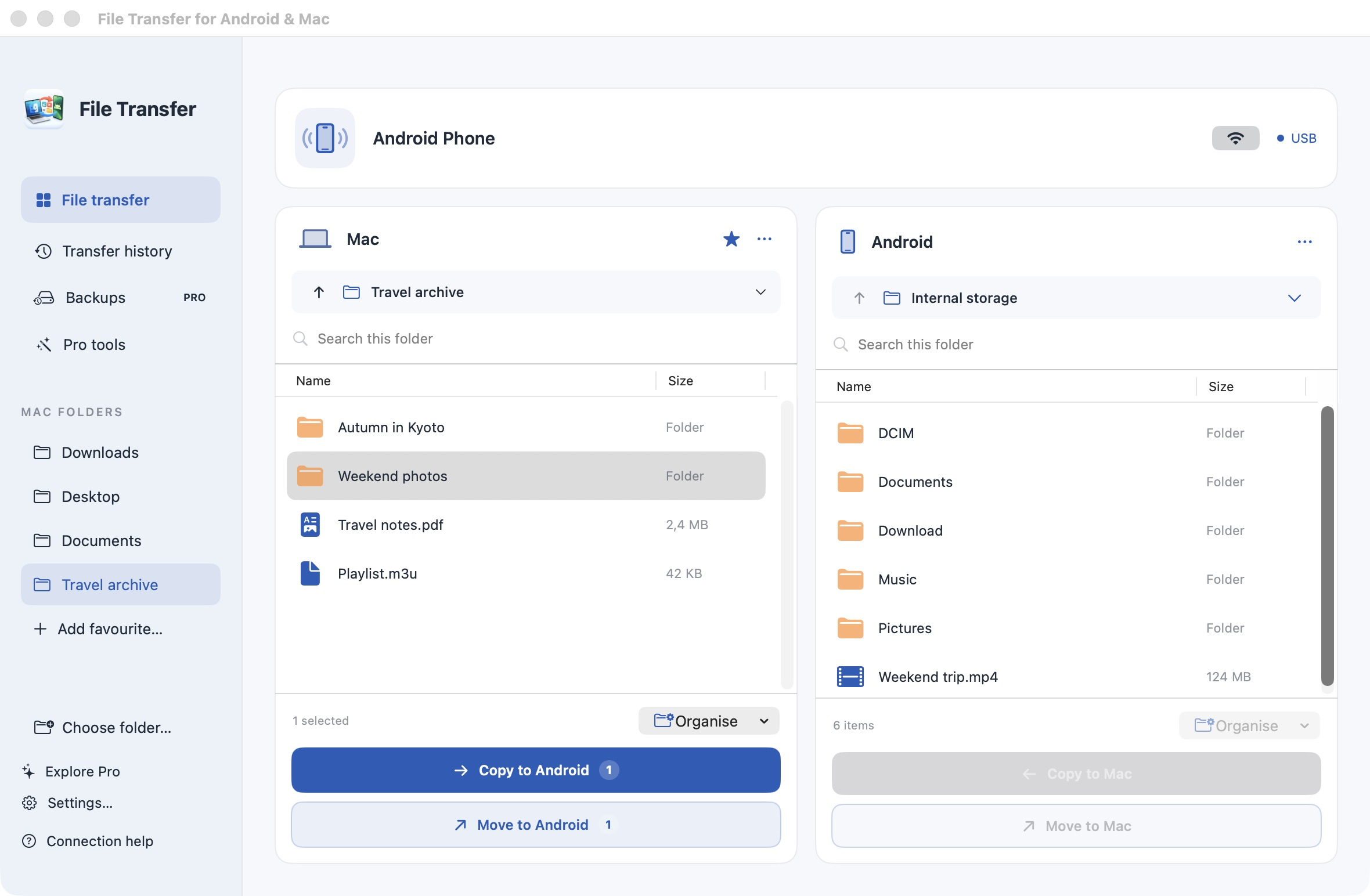
After installing the app in Applications and opening it once, select files or folders in Finder, then right-click → Services → Send to Android. In the app, choose your phone and Android destination folder, then click Copy here. You can also drag Finder files into the Android pane.
If the service is hidden, enable it in System Settings → Keyboard → Keyboard Shortcuts → Services. The phone does not appear as a mounted drive in Finder; browsing Android folders happens in the app.
Optional device names in Finder
In the app, open Settings → Finder integration → Enable Finder extension. In macOS, enable File Transfer for Android & Mac. Right-click files inside a Mac favourite folder to see Send to [device name]. If several phones are connected, choose one from the submenu. The app opens with the files selected; choose the Android destination and click Copy here. Nothing transfers until you confirm.
You can leave the extension off and continue using Services → Send to Android. It adds no login item and does not mount your phone as a disk.
Manage files
Copy and move
Copy keeps the originals. A cross-device Move copies and verifies the contents before removing the originals. Choose which buttons are visible in Settings; at least one must remain visible.
Manage files on your Mac
Select files or folders in the Mac pane and use Organise, the folder options menu or right-click to rename, copy to a Mac folder, move within your Mac or move items to Trash. These actions work without a phone connected. Drag into another Mac folder to move; hold Option to copy. A copy keeps both items if a name already exists; a move leaves an occupied destination untouched. Mac deletion uses Trash, where you can restore items.
Drag and drop
Drag between the app’s Mac and Android panes to copy; hold Command to move. Within Android, drag into a folder to move; hold Option to copy. Finder drops copy files.
Folders, favourites and the menu bar
Add a Mac folder to the sidebar for quick access. Removing a favourite only removes its shortcut. Use the menu bar icon to see connected devices and open the app. Create folders, rename items or delete selected Android files from the app’s file controls.
Conflicts and deletion
When a destination exists, choose Keep Both, Skip or Replace. Replace swaps the whole item, including an entire folder; it does not merge folders. Android deletion is permanent and does not go into the Mac’s Trash. Check the selection before confirming.
Colour themes
Open Settings and choose Ocean, Forest, Violet, Coral, Teal or Graphite. The sidebar, buttons and accent colours change immediately. Your selection is remembered when you reopen the app. All themes are free.
Previews and history
Open supported photos and videos to preview them. Android previews temporarily copy the file to your Mac. Transfer history covers the current app session and can show failures or cleanup warnings.
Troubleshooting
The phone is not showing up
Unlock it, check USB debugging, approve the Mac and try a known data cable. Reconnect the phone if the prompt did not appear. Check whether another Android utility is using the connection. Avoid stopping shared Android services while another app needs them.
Files appear in the app but not on my phone
Check the exact destination in the phone’s Files app. “Internal storage” in the app maps to shared storage, commonly /sdcard. Gallery apps show supported media, not arbitrary folders or documents, and may refresh later. Reopen or refresh the phone app after the transfer. If necessary, use Files → Internal storage → the destination folder to check the actual files.
The cable was unplugged during a transfer
Reconnect the phone, inspect the transfer history and retry the failed operation. A transfer may leave a partial staging file if cleanup could not complete. Check the reported path before deleting anything. Completed transfers remain in their destinations.
Android says access is denied
Some folders are restricted by Android, including private app storage. Use shared folders such as Download, Documents, DCIM or Pictures. This app does not root your phone or bypass access controls.
Pro and purchases
The planned one-time launch price is $9.99. The app remains free for essential file transfer and management. The Mac App Store displays your final local price before you buy.
- Storage explorer: folder and file-type breakdowns, large files and offline HTML, CSV or JSON inventories.
- Duplicates: matches identical contents, even with different filenames. Review the keep/delete selection before confirming.
- Batch rename: presets, find and replace, case changes and numbering with a preview.
- Organise: move selected files into folders by type or modification month. Dates may differ from when a photo was taken.
- Compare folders: save folder pairs, find differences and copy selected items. This is a reviewed copy operation, not continuous two-way synchronisation.
- Backups and imports: import new photos and videos, save jobs and optionally run them on connection while the app is running. Existing versions are preserved; backups do not delete phone files.
Restore a purchase
Use Restore Purchases in the Pro window with the Apple Account used for the original purchase. For billing or refunds, visit Apple’s purchase support. If Pro still does not unlock, email support with the error message; do not send payment-card details.
System requirements
macOS 13 or later on Apple silicon or Intel. An Android device with USB debugging and a data cable, or Android 11+ with Wireless debugging on the same Wi-Fi network. Permission to access the selected Mac folders is required. Apple services require an internet connection for purchasing and restoring Pro.