
Connect with a cable
Plug in a USB data cable, enable USB debugging and approve your Mac on your phone.
USB setup guide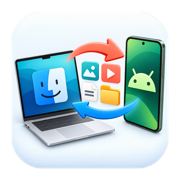 File Transferfor Android & Mac
Copy, move and manage your files over USB or Wi-Fi. All the essentials are free.
macOS 13+ · Apple silicon & Intel · App Store release coming soon

Plug in a USB data cable, enable USB debugging and approve your Mac on your phone.
USB setup guide
On Android 11+, enable Wireless debugging and pair with a QR code. Both devices use the same Wi-Fi.
Wi-Fi setup guide$0
Everything you need for everyday transfers.
$9.99 once
Extra tools, and a way to support development.
Planned launch price. Your App Store shows the final local price.
No. Copy, move, file management, favourites, menu bar access and previews are free. Pro is optional.
Pro is a way to support ongoing development if you enjoy using the app. The free version is fully functional for everyday file transfers: copy, move and manage your files over USB or Wi-Fi, with no purchase required. Pro adds optional extras such as saved backup jobs, photo imports, duplicate finding and folder comparison. Buy it if those tools are useful to you, or if you’d simply like to support the developer.
No. Transfers stay between your Mac and phone. The app has no publisher account or cloud upload. Apple handles Pro purchases. See the privacy policy.
Yes. Wi-Fi transfers are included free. You need Android 11 or newer with Wireless debugging enabled, and your Mac and phone on the same Wi-Fi network. Pair with a QR code or pairing code in the app. Wi-Fi setup.
Yes. Select files or folders in Finder, then use Services → Send to Android. You can also enable the optional Finder extension to see “Send to [device name]” in your Mac favourite folders. Choose the Android destination in the app and click Copy here. Both options are free. Finder instructions.
The app uses Android Debug Bridge to access shared storage. USB connections require USB debugging and your approval on the phone. Wi-Fi uses Wireless debugging and pairing. Only approve computers you trust. You can revoke approval in Developer options.
You can access shared storage, including DCIM, Download and Documents. Android restricts private app data and some folders; the app does not bypass those restrictions.